Via which channel visitors arrive at your website





I hope you enjoy reading this article. If you need support with SEO , Google Ads , Facebook Ads, or Landing Pages, click on the link.
Google Analytics is a crucial tool that helps you to measure and analyse the results of your website and your online marketing. This allows you to learn how you can improve your website.
In Analytics, you will discover, among other things:

Via which channel visitors arrive at your website
Which pages your visitors find interesting
On which pages you lose many visitors
Which pages yield many conversions
Google Analytics 4 is the latest version of Google Analytics. The biggest difference? Whereas in Universal Analytics (the predecessor of Google Analytics 4), you still had to create separate ‘properties’ for your website and app, in Google Analytics 4, these end up in the same property. This provides additional possibilities for analysing your data!
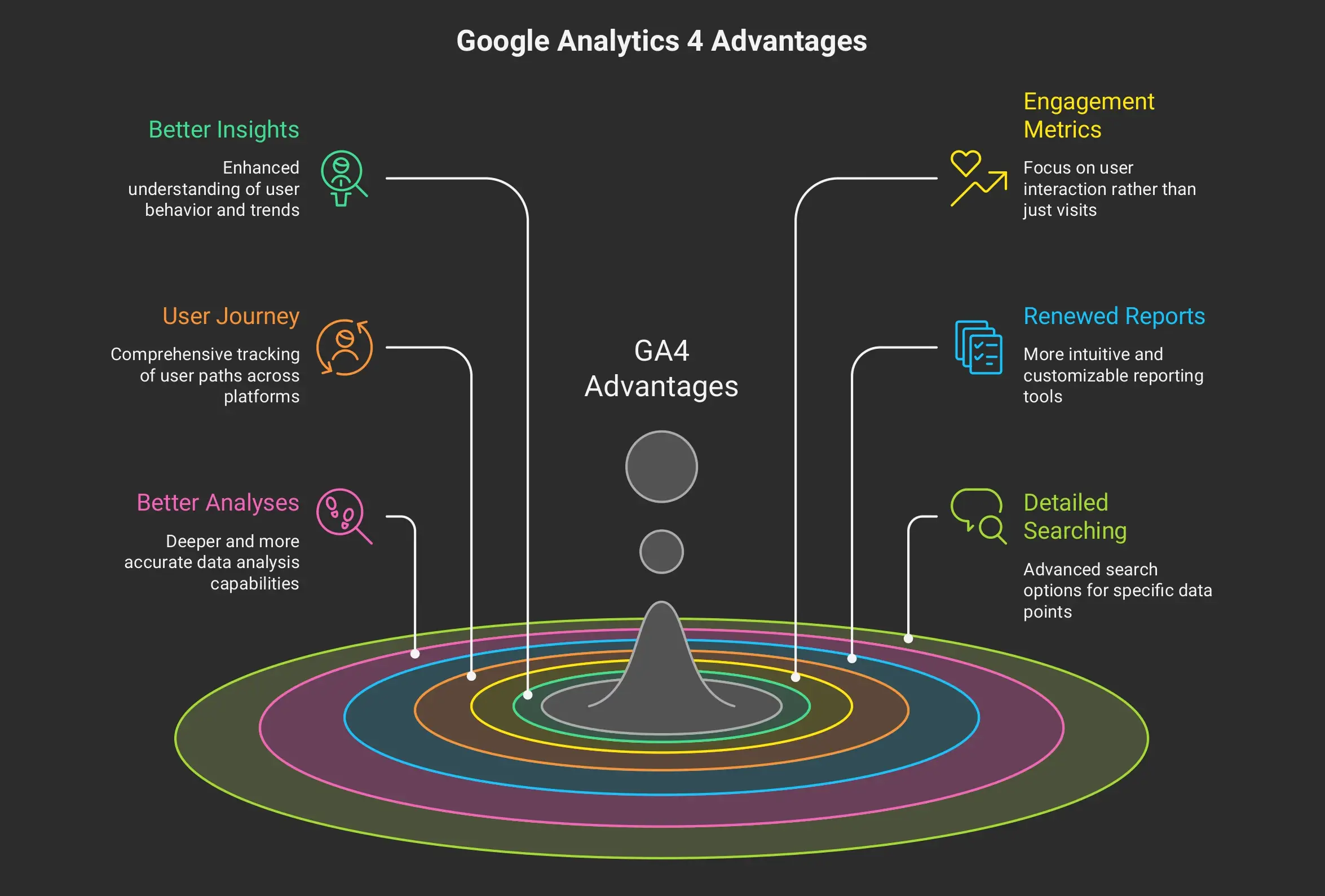
Is Google Analytics 4 then only interesting for companies that want to bring together data from their website and app? Not necessarily! Below, we go deeper into the 6 most important changes that Google Analytics 4 brings with it.
Google promises more advanced insights and predictions in Google Analytics 4. Based on artificial intelligence, the tool will, for example, be able to:
Warn you when the demand for certain products rises
Help to discover new target groups
Predict how much profit you could make from these new target groups
Universal Analytics uses the ‘bounce rate’ as a measure for the quality of your pages. But in Google Analytics 4, this is replaced by ‘engagement’.
An engaged user is someone who:
Proceeds to a conversion
Views multiple pages
Stays on your website for longer than 10 seconds
Thanks to this ‘engagement’, Google Analytics no longer sees users who view only 1 page of your website as something negative, as long as they stay on that page long enough.
Has your page helped your visitor so well that this person does not need to view other pages? Then Google Analytics 4 recognises that from now on as something good!
Customers and leads arrive at your website via different devices and browsers. Google Analytics 4 responds cleverly to this by bundling data from the same person on different devices into 1 user journey.
You can give the tool a helping hand by making data available from users who have logged in to your website or created an account. But that is not strictly necessary.
Google also takes device IDs and Google accounts into account to follow the user journey. And if that data is not complete, you can also have Analytics create a User ID for every user.
There are, therefore, plenty of ways to follow an (anonymous) user across multiple devices and platforms.
Just as in Universal Analytics, you can also request reports in Google Analytics 4 that give you more insight into your data.
In Universal Analytics, you have a long list of reports to choose from, but Google Analytics 4 takes a different approach.
In the new version, you receive several overview reports (e.g. engagement, retention, demographics, technology, etc.) that you can still slightly adjust via the ‘Customise report’ button.
Do you still want to create a more detailed report? Then there is now the ‘Explore’ tool.
In the Explorations hub, you can relate all insights and statistics to each other, determine target groups, filter data, and much more.
You can then export or download those analyses to show to your colleagues or clients.
There are different types of analyses. You can find all of these if you click on ‘Explorations’ in the navigation.
You can divide the 6 main analyses into 3 categories:
Free form analysis (cross-tabulation)
Funnel and path exploration for buyer journeys
Segment overlap, user exploration, and cohort exploration
With these reports, you can analyse and refine the interests and behaviour of your target groups and use those insights to create more content that will attract new visitors.
Google Analytics 4 also has a handy search bar with which you can easily find your way in the new Analytics.
This search bar is not new in itself, but has been greatly improved compared to previous versions.
From now on, you can not only find the right tools, but the search bar also anticipates questions.
Google Analytics 4, for example, suggests the question ‘What are my top events by users?’ itself if you type ‘What’ into the search bar. If you click on the question, you will see a small report. Other (basic) questions are also possible and always lead you to a small report. Handy for quickly looking up data in a clear way.
Find out how ANA digital media can get massive amounts of traffic to your website...
Link building – we create relevant backlinks to help your website grow into an authority.
Content – we write the ultimate content that gets shared, gets links, and attracts traffic.
Technology – our specialists know exactly how to optimise your website for the Google search engine.
In the first instance, nothing will go wrong if you do not install Google Analytics 4. But choosing not to install it now will lead to problems later.
In a few years, Universal Analytics will disappear, and you will have to switch to Google Analytics 4 anyway. If you wait until then to switch, you will not be able to consult data from the past. After all, you cannot transfer that data from your Universal Analytics to your Google Analytics 4 property. You therefore lose the possibility to compare figures over the years, making it more difficult to evaluate your results.
At the same time, Google Analytics 4 is still in its infancy. As a result, not all tools are equally user-friendly; you still miss certain functions, and there are still various uncertainties. Google will add more and more features and tools to the current basis of Google Analytics 4 in the coming years.
We therefore advise you to continue using your Universal Analytics property for the time being, but at the same time also to create a Google Analytics 4 property and link it to your website. Both properties will then run alongside each other, and each collect data. This way, Google Analytics 4 already begins to collect data now, and you have access to the new reports and analyses, but you can at the same time rely on the familiar functions and tools of Universal Analytics. Win-win!
Are you convinced of the benefits of Google Analytics 4, and do you want to get started with it yourself? Then we have good news! You can create a Google Analytics 4 property in an instant.
Do you not yet have a Google Analytics account? Then you must first create one.
If you subsequently create a new property, it is from now on a Google Analytics 4 property by default, and you therefore do not need to upgrade.
Do you already have a Google Analytics account and a Universal Analytics property, but do you also want a Google Analytics 4 property?
Then go to the admin menu of your account and click on the button ‘GA4 Setup Assistant’. Do not worry: by pressing the button, you create a new Google Analytics 4 property in your existing account. Your Universal Analytics property will therefore continue to exist alongside your new GA4 property.
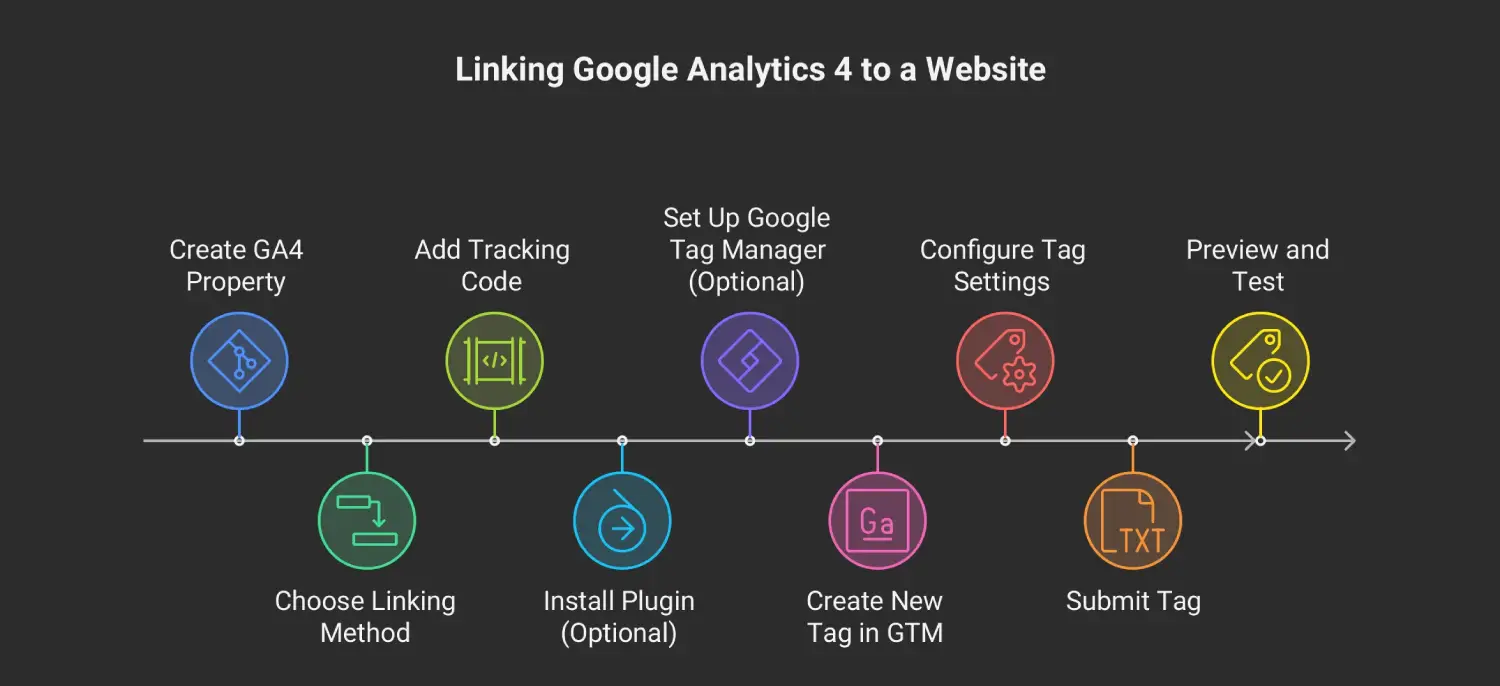
Good, you now have a new property and are up-to-date with Google Analytics 4. But how do you link that property to your website?
You do that by placing a tracking code on your website. Several methods exist for this:
Firstly, you can add the tracking code for your Google Analytics 4 property to the code of your website.
Two ways exist for this:
Add the tracking code directly to the code of your website
Install a plugin that does that for you
For WordPress websites, there are several plugins. Two popular options are GA Google Analytics and Google Analytics Dashboard.
Both ways have advantages and disadvantages:
A plugin makes it very easy to add the code but can slow your website
Adding code directly is faster but riskier if mistakes are made
It is therefore best to contact your web designer to help you with this.
: Do you use other tracking codes on your website in addition to Google Analytics 4 (e.g. for Facebook or MailChimp), or do you want to do that in the future? Then Google Tag Manager (GTM) is a handy solution!
You only have to install this tool on your website once. After that, you can easily add all kinds of tracking codes to your website via your Tag Manager without having to add a piece of code every time. A disadvantage is that Google Tag Manager has slightly more impact on the speed of your website than when you only add the Analytics code.
To install the tracking code of Google Tag Manager on your website, you can again use a plugin or add the tracking code directly to the code of the website. An example of such a plugin is ‘Google Tag Manager for WordPress’.
Do you not yet have Google Tag Manager, but do you want to be able to add all your tracking codes easily? Then read how you can set up your GTM account. Please note: when adding the GTM tracking code to your website, something can easily go wrong. You are therefore best to ask your web designer for help!
Do you already have a Google Tag Manager account? Then follow the step-by-step plan below to link your new Google Analytics 4 property to your website. When you log in to your Tag Manager, you will see a menu on the left containing ‘Tags’. Click on this. At the top right, you will now find the button ‘New’. Click on this. You can now set up your tag:
In the field at the top left, you can give the tag a name. Choose a clear description so that you still know what this tag does later. We chose, for example, ‘Google Analytics ANA Digital Media – GA4 configuration’. Click on the pencil in the top right corner of the ‘Tag Configuration’ field. You can now indicate the type of tag. We are, of course, going for the ‘Google Analytics: GA4 Configuration’. If you want, you can now further personalise your tag. Click on the pencil in the top right corner of the ‘Triggering’ field. Here you can set 1 or more triggers that ensure the tag becomes active. For your Google Analytics tag, it is usually sufficient to set a trigger that activates the tag every time a page on your website is visited. (Do you want to know more about triggers? Then read the handy guide from Google itself!) There you go, you now only have to press ‘Submit’ at the top right. The code on your website has been updated and is now also sending data to Google Analytics 4.
Tip: Before you press ‘Submit’, you can first view a preview. There, you can test whether your tags also work as you have set them up. Handy, right?
Did you previously work with Firebase and Analytics to analyse the data from your app? Then you can simply upgrade your Firebase project, after which your project is automatically linked to a Google Analytics 4 property.
Were you not yet using Analytics to collect your app data? Then now could be the moment to start with that.
Tip: Do you have an Android and iOS app? Then you must set up 2 different data streams in your Google Analytics 4 property.
Are you convinced of the usefulness of Google Analytics 4, but do you not quite know how to start? Then there are 3 possible scenarios:
If you are a marketing-as-a-service client at ANA Digital Media? Then we will contact you in the coming month to get Google Analytics 4 in order. Are you already a client at ANA Digital Media, but not (yet) a marketing-as-a-service client? Then we will contact you in the coming weeks without obligation. Are you not yet a client, but could you use some help with Google Analytics 4? Contact us without obligation!
We wish you every success with Google Analytics 4!


Let our experts turn your goals into real results.
ⓒ Copyright 2026 . All Rights Reserved By ANA Digital Media