

Saves time: Build pages, posts, and layouts in minutes instead of hours of manual drag-and-drop work.


I hope you enjoy reading this article. If you need support with SEO , Google Ads , Facebook Ads, or Landing Pages, click on the link.
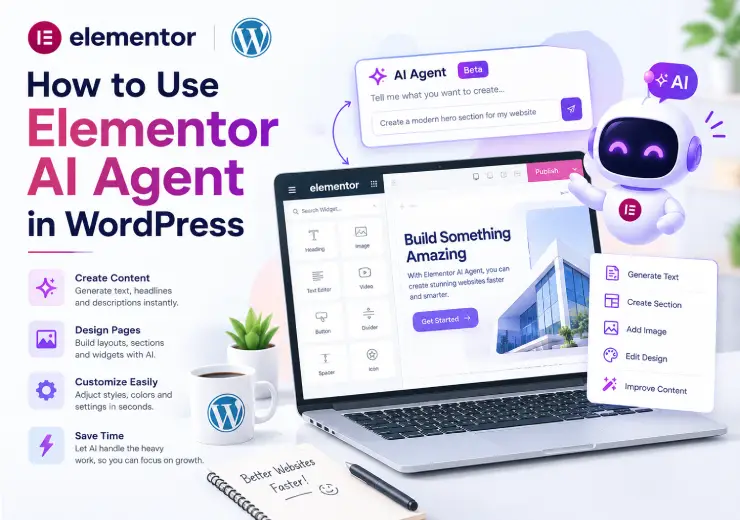
WordPress powers a huge part of the internet, and Elementor is one of the most popular website builders for WordPress users who want a professional site without writing code. Building a website has always meant spending hours on layouts, plugins, and settings, even with a drag-and-drop tool. In 2026, Elementor changed this with the Elementor AI Agent, known as Angie, an AI assistant that can build pages, manage your site, and handle repetitive tasks from a simple text prompt.
This is not just another AI writing tool that gives you a paragraph of text. Elementor AI Agent is described as agentic AI, which means it can plan and carry out multi-step actions on your live WordPress site, not just suggest ideas. For beginners, freelancers, and digital agencies, this can turn a task that used to take hours into something that takes minutes.
In this complete guide, we will explain what Elementor AI Agent is, how it works, its main advantages, a full step-by-step guide on how to use it, its key features, pricing, common mistakes to avoid, and answers to frequently asked questions. By the end, you will have a clear idea of whether this tool fits your WordPress workflow.
Elementor AI Agent, called Angie, is an agentic AI assistant built directly into Elementor and WordPress. Unlike simple AI writing tools that only generate text, Angie is designed to understand context, use tools, and carry out multi-step tasks on your website instead of just producing content in isolation.
Angie sits as a panel inside WP Admin and the Elementor Editor. Instead of clicking through many menus to find a setting or build a section by hand, you simply type what you want in plain English, such as creating a page, publishing a blog post, adding alt text to images, installing a plugin, or changing a theme, and Angie carries out the task for you.
What makes Angie different from older AI plugins is context awareness. It reads your site's existing theme, installed plugins, and content structure before generating anything. This means the pages, code, and layouts it creates are meant to match your site automatically, instead of looking like a generic template pasted on top.
Angie is included with the Elementor One subscription plan, which brings Elementor's website creation, optimisation, and management tools into a single, unified dashboard. Instead of buying separate plugins for AI, image optimisation, accessibility, and email deliverability, Elementor One bundles them under one plan with shared credits.
Most AI tools generate content or code without knowing anything about the website they are meant to work on. This usually means the website owner still has to manually adapt, test, and fix the AI output before it fits their site. Elementor's approach with Angie is to build an AI system natively inside WordPress, so it already has access to your site's structure, styling, and plugins.
This is useful for two kinds of users. First, beginners who do not know how to code or design but still want a professional-looking website. Second, agencies and freelancers managing multiple client sites, who need to repeat the same setup tasks again and again and want to save time without lowering quality.
Here are the main benefits of using Elementor AI Agent for your WordPress website:

Saves time: Build pages, posts, and layouts in minutes instead of hours of manual drag-and-drop work.
Beginner friendly: No coding or design skills are needed. You simply describe what you want in plain English.
Understands your site: Angie reads your theme, plugins, and content structure, so results match your site automatically instead of looking generic.
Handles site management: Beyond design, it can install plugins, manage users, update core settings, and handle media.
Generates full pages, not just text: It can build complete pages and blog posts using real Elementor elements, ready to publish.
Custom code on demand: With Angie Code, it can write widgets and functionality that fit your existing design system.
Safe testing: A test mode lets you preview AI-made changes before they go live on your website.
Good for agencies: Teams managing many client sites can speed up repetitive setup work across projects.
Grows over time: New AI capabilities are added to the Elementor One plan automatically, so the tool keeps improving without extra setup.
Here is a detailed, step-by-step process to start using Elementor AI Agent on your WordPress website:
Elementor AI Agent (Angie) is not a separate plugin you install on its own. It comes bundled with the Elementor One subscription, which also includes Elementor Pro and a shared pool of AI credits. Before you can use Angie, log into your Elementor account and make sure your site is connected to an active Elementor One plan. If you manage multiple client websites, look at the Agency plan, which lets you allocate credits across your entire portfolio instead of buying separate subscriptions for each site.
Once your subscription is active, log into WP Admin or open the Elementor Editor on any page. You will see the Angie panel appear on the left side of your screen, or you can click the Angie icon in the top bar of the Editor. This panel is where you type every request, so keep it open while you work instead of closing and reopening it for each task.
Before typing your first request, it helps to click the hamburger menu inside the Angie panel and go to AI Context. Here you can add details about your business, your preferred tone of voice, your target audience, and relevant keywords. This step is optional, but it makes a big difference, since Angie uses this information to keep every page, post, and piece of copy consistent with your brand instead of sounding generic.
Type what you want directly into the Angie panel. This could be a full page, such as "create a home page for a bakery with a hero banner, menu section, and contact form," or a smaller task, such as "add alt text to all images on this page" or "install a caching plugin." Avoid vague prompts like "make it better," since Angie works best with clear, specific instructions that describe the sections, tone, and goal you want.
After you submit your prompt, Angie builds the page, post, or task using real Elementor elements, not a static preview image. Take time to scroll through the result, check the layout on desktop and mobile, and read through any generated text for accuracy. Since Angie provides context-sensitive results, your output may look different from examples you have seen elsewhere, even with a similar prompt.
If something is not quite right, you do not need to edit it manually. Simply tell Angie what to change, such as "make the hero section shorter" or "change the colour scheme to match my logo." You can also ask Angie to generate an alternative version of the same page so you can compare layouts before deciding which one to keep.
For tasks that affect your live site, such as installing plugins or changing core settings, use Angie's test mode where available. This lets you preview the outcome of an action before it goes live, which reduces the risk of breaking something on a production website, especially for client projects.
Once you are satisfied with the result, publish the page so it goes live immediately, or save it as a draft if you want to review it again later or get approval from a client or team member first.
Tip: The more specific your prompt, the better the result. Detailed prompts that describe sections, tone, and purpose almost always produce better layouts than short, vague ones.
Beyond building a home page, Angie can help with many day-to-day WordPress tasks. Here are some real examples of prompts and what they do:
"Create a blog post about summer skincare tips" — generates a complete, feature-rich post using Elementor elements, ready to edit or publish.
"Add alt text to all images on this page" — automatically writes accessibility-friendly alt text for your images.
"Switch the site theme to Hello Elementor" — installs and activates the theme without you going into the Themes menu.
"Generate a sitemap for a fitness coaching website" — builds a full site structure and wireframe in seconds.
"Create a contact form widget with name, email, and message fields" — builds a working form component matching your site's design.
These examples show that Elementor AI Agent is not limited to design. It can also handle backend tasks like plugin management, settings updates, and content publishing, which normally take up a lot of a website owner's time.
Here is a quick look at what Elementor AI Agent can do:
| Feature | What It Does |
|---|---|
| Chat-based commands | Type a request in plain English and Angie carries it out for you. |
| Page & post creation | Builds full pages or blog posts using Elementor elements from one prompt. |
| Site management | Installs plugins, manages users, and updates settings without menu-hopping. |
| Wireframe generation | Creates a site structure or sitemap in seconds. |
| Code generation (Angie Code) | Writes custom widgets and functionality that match your site's design. |
| Context awareness | Reads your theme, plugins, and content so outputs fit your site automatically. |
| Test mode | Lets you preview AI changes safely before they go live. |
Elementor AI Agent is included with an Elementor One subscription, and usage is based on shared AI credits that also cover image optimisation, accessibility checks, and email deliverability. Since pricing and credit plans are updated from time to time, it is best to check current numbers before you subscribe. You can find a full pricing breakdown in our detailed guide on Techstreat's Elementor AI Agent pricing guide.
Using vague prompts: A prompt like "make it better" gives the AI little to work with. Be specific about sections, tone, and goals.
Publishing without review: Always check a page in test mode or as a draft before making it live, since AI output can still need small edits.
Ignoring your brand voice: Add your business details, tone, and keywords in the AI context settings so results feel consistent with your brand.
Expecting zero editing: Angie speeds up the first draft of a page, but fine-tuning for your exact business needs still helps.
No AI tool is perfect, and it helps to know the limits before you rely on it fully. Angie works best when your prompts are clear and your site already has some structure in place, such as a theme and basic pages. On a completely blank WordPress install with no plugins or content, results may need more manual adjustment.
AI-generated layouts can also need small design tweaks to match your exact brand guidelines, spacing preferences, or unique business needs. Complex, highly custom functionality may still require a developer, especially for advanced integrations outside the WordPress and Elementor ecosystem. Treat Angie as a strong starting point that speeds up the first 70 to 80 percent of the work, not a full replacement for human review.
Traditional WordPress website building usually means picking a theme, installing several plugins separately, building each section by hand with the drag-and-drop editor, and then testing everything on different devices. This process can take anywhere from a few hours to several days, depending on the complexity of the site.
With Elementor AI Agent, many of these steps are combined into one prompt-based workflow. You describe the page or task, Angie builds it using your existing site context, and you review and adjust from there. This does not remove the need for good design judgement, but it removes a large part of the repetitive manual work, which is especially useful for agencies working on tight deadlines.
If you already use Elementor to build WordPress sites, Angie is worth trying. It will not replace design decisions or strategy completely, but it removes a lot of repetitive manual work, so you can focus on content, branding, and client needs instead of clicking through menus. For freelancers and small business owners without a technical background, it also lowers the barrier to building a professional-looking site.
Need help setting up a fast, professional WordPress website for your business? Our team at ANA Digital Media builds and manages WordPress websites, so you get a site that looks good and works well without the guesswork, whether or not you plan to use AI tools like Angie yourself.
Whether you want a new WordPress website or need help using tools like Elementor AI Agent the right way, ANA Digital Media can help. Contact us today to get started.


Let our experts turn your goals into real results.
ⓒ Copyright 2026 . All Rights Reserved By ANA Digital Media